Chrome shows a grey page with a heading, one sentence and a code:
Your connection was interrupted
A network change was detected.
ERR_NETWORK_CHANGED
The two sentences are translated into whatever language Chrome is set to. The code under them is the same in every language, which makes it the part worth searching for.
Chromium’s own description of that code, in the file where every network error in Chrome is defined, is three words long: “The network changed.” It is error number -21, and it is not about the site you were visiting at all. It is about the machine you were sitting at.
What it means, in plain words
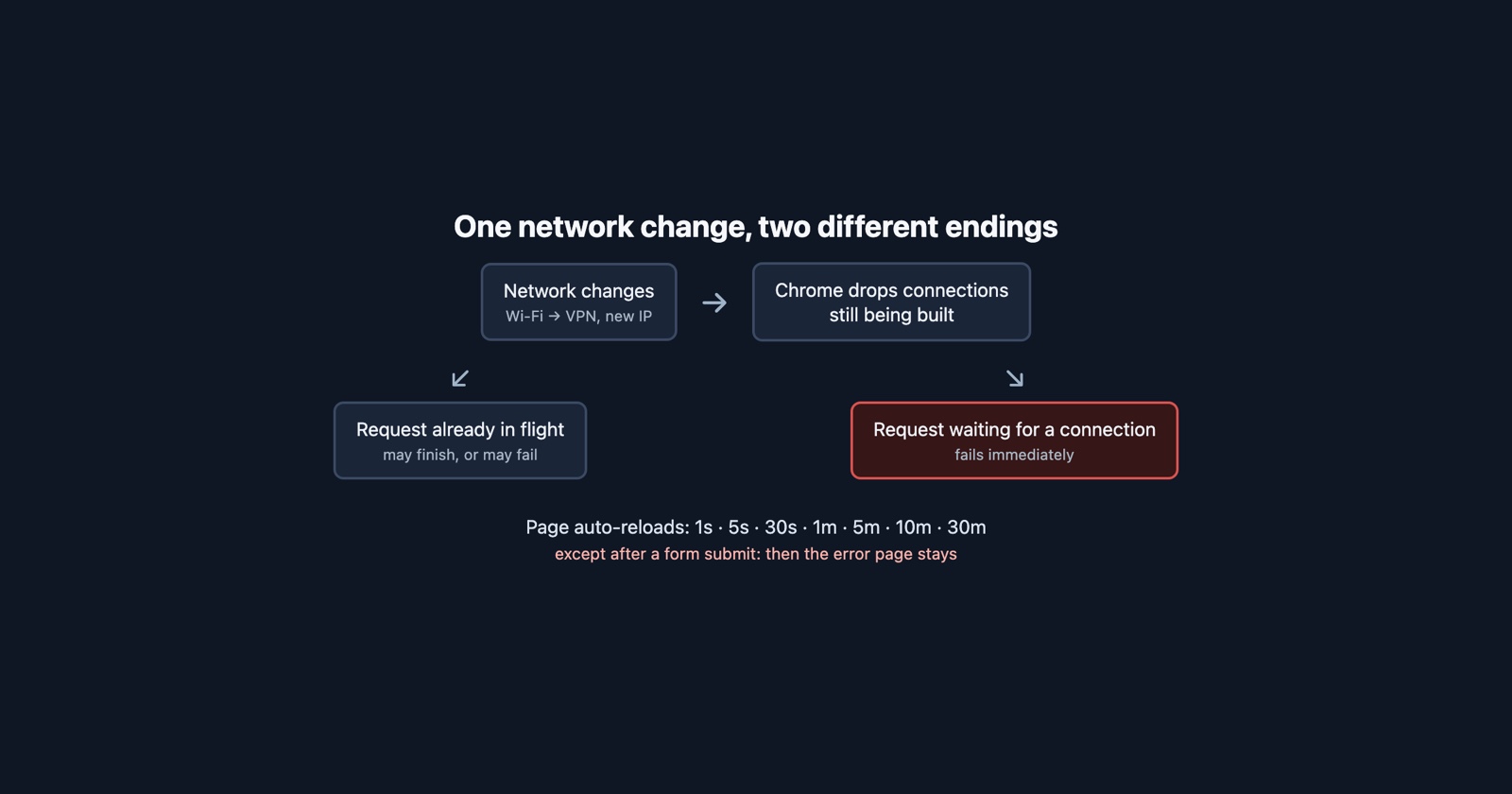
While the page was loading, your computer or phone changed the network it was using, or its address on that network, and Chrome threw away the connections it had been building on the old one. Nothing is wrong with the site, and nothing you typed caused it.
The usual reasons are ordinary: you moved between two Wi-Fi networks, a VPN connected, disconnected or reconnected, a laptop was docked or a cable plugged in, or a phone moved from Wi-Fi to mobile data. Any of those can give the device a new address, and an address change in the middle of a page load is what this error reports.
What to do is usually nothing more than reload, and often Chrome does that for you before you get the chance (more on that below). If you were submitting something, an order, a payment or a message, check whether it went through before trying again.
What counts as a network change
Chrome learns about it from a component called the network change notifier, and the contract for the signal that matters here is written into its source: it fires “when the IP address of the primary interface changes. This includes when the primary interface itself changes.”
So two different things produce the same error. Your address on the same network can change, and the device can switch which network it treats as primary. A VPN client is the common example of the second: when it connects, the tunnel becomes the route out, and from Chrome’s point of view the network has changed even though the Wi-Fi never dropped.
One thing that used to count and in current Chromium source does not: many systems rotate their temporary IPv6 addresses on a schedule, for privacy, and the code now skips that kind of change when deciding whether to drop connections, behind a feature switch that is enabled by default.
What Chrome does at that moment
This is the part that decides what the person in front of the screen actually loses.
For ordinary connections, Chrome’s socket pool runs a routine called FlushWithError with this
error. It cancels every connection that was still being set up, fails every request that was
waiting for one, closes the idle connections it was keeping for reuse, and marks the rest so they
are not handed out again.
HTTP/2 depends on the platform. On Windows, Android and iOS, Chrome marks existing sessions as
going away rather than closing them, and the source comment explains why: on systems that reset
TCP connections after a network change anyway, this is an attempt to let active requests finish,
though “streams may still fail due to a generated TCP reset”. Everywhere else, including macOS and
Linux, the sessions are closed with ERR_NETWORK_CHANGED.
HTTP/3 is different again. It runs over QUIC, which can move a connection from one network to another, and where that migration is switched on Chrome leaves the sessions alone instead of dropping them.
The practical reading: a request that had not got a connection yet always fails. A request already in flight might complete, might fail, and from the outside you cannot tell which.
Why the error page often disappears on its own
Chrome has an automatic reloader for error pages caused by connectivity, and it covers this one. After a failed load it tries again with increasing gaps: one second, then five, thirty, a minute, five minutes, ten, thirty. It only does it while the tab is visible and the device believes it is online.
Two exclusions in that code are worth knowing. It never reloads a page that was the result of a
form submission (a POST), so somebody who changed network while pressing “Pay” is left on the error
page, which is the right call. And it is switched off entirely when Chrome is started with
--enable-automation, the flag test tools use to drive the browser. A user sees the error flash
and vanish; an automated test sees it stay.
That flash is why the bug report reads “an error came up for a second and then it loaded”, or why there is no report at all.
Session Replay
Free Chrome extension. One click on the page that is misbehaving captures the screenshot, the console and the network log, and hands you a link to paste into the ticket.
What it looks like from the page’s side
The error page is what happens to a navigation. Requests the page makes itself, through fetch or
XMLHttpRequest, get no page and no reload. They reject the way any network failure does, which in
Chrome means
TypeError: Failed to fetch,
and your error tracker records it as one more instance of the least informative error there is.
Your server, meanwhile, has nothing to show for the requests that never got a connection, and possibly a perfectly normal log line for one that completed just before its response was lost. If your errors cluster on laptops in the morning or on phones at commuting times, this is a strong candidate: those are the moments devices change networks.
And for anything that writes, the honest behaviour is the same as after any interrupted request: assume it may have arrived, and make the retry safe rather than the user careful.
When it keeps happening
Once is a change of network. Every few minutes is something on the device repeatedly changing the primary interface or its address: a VPN that keeps reconnecting, a Wi-Fi connection that keeps dropping and rejoining, or two networks taking turns at being the default.
Chrome can show you which. Record a log at chrome://net-export while it happens, and it contains
an event, NETWORK_IP_ADDRESSES_CHANGED, which Chromium describes as emitted “whenever
NetworkChangeNotifier determines that an active network adapter’s IP address has changed”. The
timestamps of those events against the times of the errors settle whether the device is the cause.
It is the same question as telling your bug from somebody else’s outage, except that the outage is in the user’s own machine, and it is a different failure from the ERR_CONNECTION family, where a server or something on the path refused or dropped the connection.
What to put in the report
If you are the one who saw it, these make the report useful:
- The exact time, so it can be matched against anything else.
- Whether you were on a VPN, had just moved, docked, or switched between Wi-Fi and mobile data.
- Whether the page came back on its own, or stayed on the error.
- What you had just done, especially if you submitted a form or a payment.
If you are the one receiving it: the error describes the user’s device, not your site, and the one thing worth checking on your side is whether anything they submitted arrived twice, or not at all.