ClickUp bug tracking with the report already on the task

The bug is captured once, and the ClickUp task is created from that capture, in the list your team already works from: the page it happened on, the browser, the first console error and one link to the recording, the console output and the network trace.

Install ExtensionSee how it works

5,0 de 17 valoraciones en Chrome Web Store

Why a bug task arrives half empty

Most bug tasks in a list are a title and a sentence. The detail was captured, it just never made the trip.

A bug usually reaches ClickUp as a quick task somebody typed between meetings: a title, a line of description, maybe a screenshot pasted from the clipboard. The browser, the address and what the console printed stayed with whoever saw it.

Then the task sits in the list until somebody picks it up and asks the questions the task should have answered. By then the person who reported it has moved on, the tab is closed, and the only record of the error is their memory of it.

Creating the task from the report closes that gap. It lands in the list with the report link on its first line, the page, the browser and the first console error, so whoever picks it up starts from the evidence rather than from a request for it.

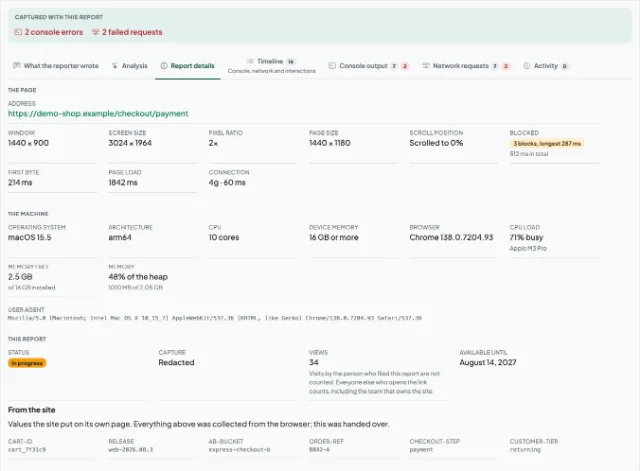
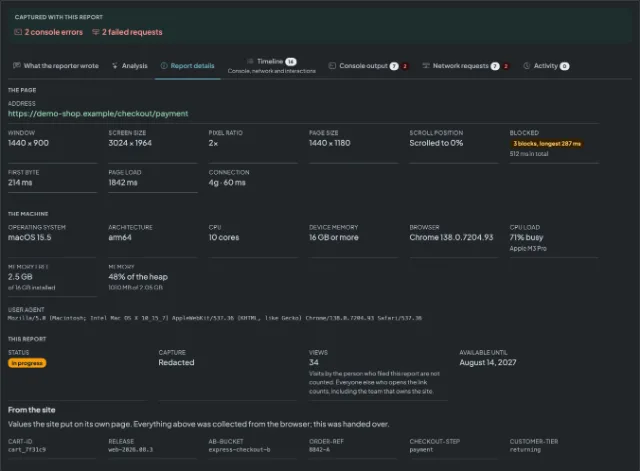
A shared report showing the reporter's note, the console output and the browser it was captured inA shared report showing the reporter's note, the console output and the browser it was captured in

Three steps to a task in your list

Connect the workspace and choose the list

A team admin connects a ClickUp workspace, then picks the space, the folder and the list the tasks should go into, and binds it to one of your domains or to all of them. What the connection is used for is written out on the ClickUp card on the connectors page.

Capture the bug where it happens

The person who hits the bug opens the side panel on that page and records it or takes a screenshot. The browser, the window size, the console output and the network log come along without anybody having to write them down.

Press the button and the task is in the list

Anybody looking at the report creates the task with one press. It appears in the chosen list with the report link, the page, the browser and the first console error already in the description.

What lands in ClickUp

The task description the connector writes, as the list receives it.

What arrives
Creates a task in the ClickUp list you chose, carrying the report and a link to it. Nothing is filed automatically: a task is created only when somebody presses the button on a report.
The first line of every task is the report's link, and that link is public. Anyone who can open the task can read the report without signing in.
What connecting takes
A team admin connects a ClickUp workspace, picks the space, the folder and the list to file into, and binds it to one of your domains or to all of them. Read access is used only to list your workspaces, spaces, folders and lists. Nothing is read back from ClickUp afterwards, and nothing there is edited, closed or deleted.
In the list
[Open report](https://session-replay.com/replays/8f3c1ab9d24e)

### What the reporter wrote

> The discount code applies but the total does not change.

- Page: https://shop.example.com/checkout
- Browser: Chrome 139
- Operating system: macOS 15.5
- Reported by: Anonymous
- Severity: Major

12 console lines · 34 requests, 1 failed

First error:
```
Uncaught TypeError: discount is null (cart.js:214)
```

ClickUp is one of several destinations a report can be sent to. What each of the others does with a report, and what connecting it takes, is on the connectors page.

What this does not do

The connector hands a report to ClickUp and stops there. So that you can judge it fairly before connecting it:

  • Nothing is filed automatically. A task exists only when somebody presses the button on a report, never because a report arrived.
  • The capture is never in the payload. The recording, the console output and the network log stay behind the link on the task, and the task carries the details rather than the files.
  • A report's share link is public, and it is the first line of every task. Anyone who can open the task can read the report without signing in.
  • Read access is used only to list your workspaces, spaces, folders and lists. Nothing in ClickUp is edited, closed or deleted.
  • Nothing is read back and nothing syncs. Closing the task does not close the report, and comments written on the task do not come back.
  • One list per connection. Every task goes to the list chosen at setup, and it lands with the list's defaults rather than an assignee, a status or a priority chosen for it.
  • Setup belongs to a team admin, once, for the whole team, and nothing is captured until somebody presses a button.

Questions teams ask before connecting ClickUp

The report's title becomes the task name, truncated at 250 characters, and the description is written in markdown: the report's link on its first line, then what the reporter wrote, the page it happened on, the browser and operating system, who filed it and how severe they called it, how many console lines and requests were recorded, and the first console error in a fenced block. The recording and the full logs stay behind that link rather than travelling as attachments.

No. A task exists only when somebody looking at a report presses the button on it. The task's link is kept on the report afterwards, so the next person to open it can see it was already filed, and pressing the button again does not create a second task.

Read access is used only to list your workspaces, spaces, folders and lists, so that you can pick one at setup. The one thing written is the new task. Nothing in ClickUp is edited, closed or deleted, and nothing is read back from it afterwards.

Into one list, chosen at setup by working down from the workspace to the space, the folder and then the list. Lists that sit directly in a space, outside any folder, can be chosen too. The connection is bound to one of your domains or to all of them, so a team running two products can send each one's bugs to its own list.

The first line of every task is the report's link, and that link is public. Anyone who can open the task can read the report without signing in. Choose a private list if the reports should stay inside the team.

The next task that cannot be created switches the connection off and says why on the connectors screen, and a team admin connects the workspace again from there. Reports captured in the meantime are not lost: they wait on their share links, and each can be filed once the connection is back.

Stop rebuilding the bug inside the task

Capture the page once, choose the list once, and let every bug task arrive with the recording, the console and the browser already behind one link.

Install ExtensionSee pricing

5,0 de 17 valoraciones en Chrome Web Store